Free US shipping · Questions? +1 (747) 281-2317

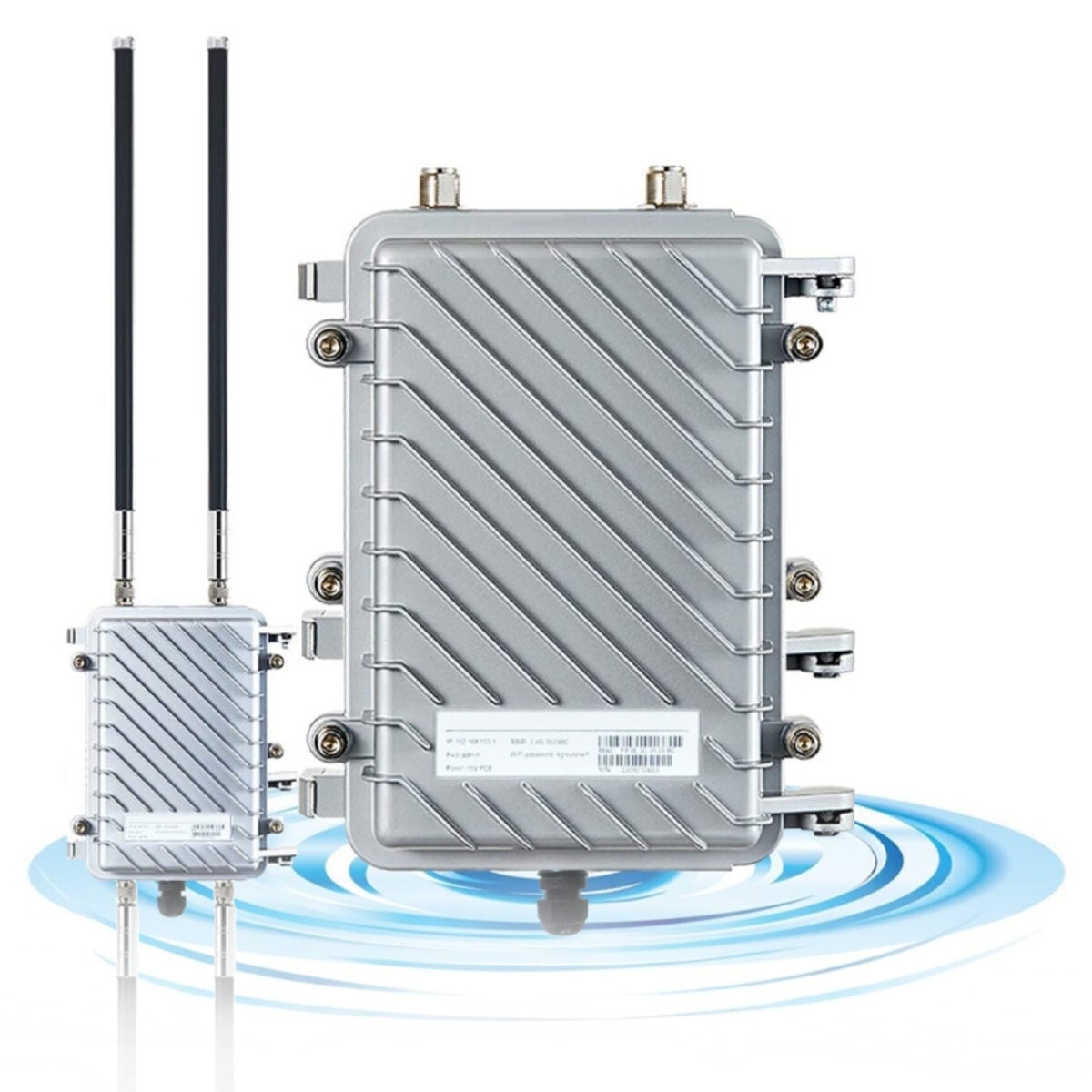
BEAM 3000 Mbps Outdoor WiFi Extender

$389.99

30-Day Money Back Guarantee • Free Shipping

Frequently Asked Questions

Most frequent helpful questions and answers

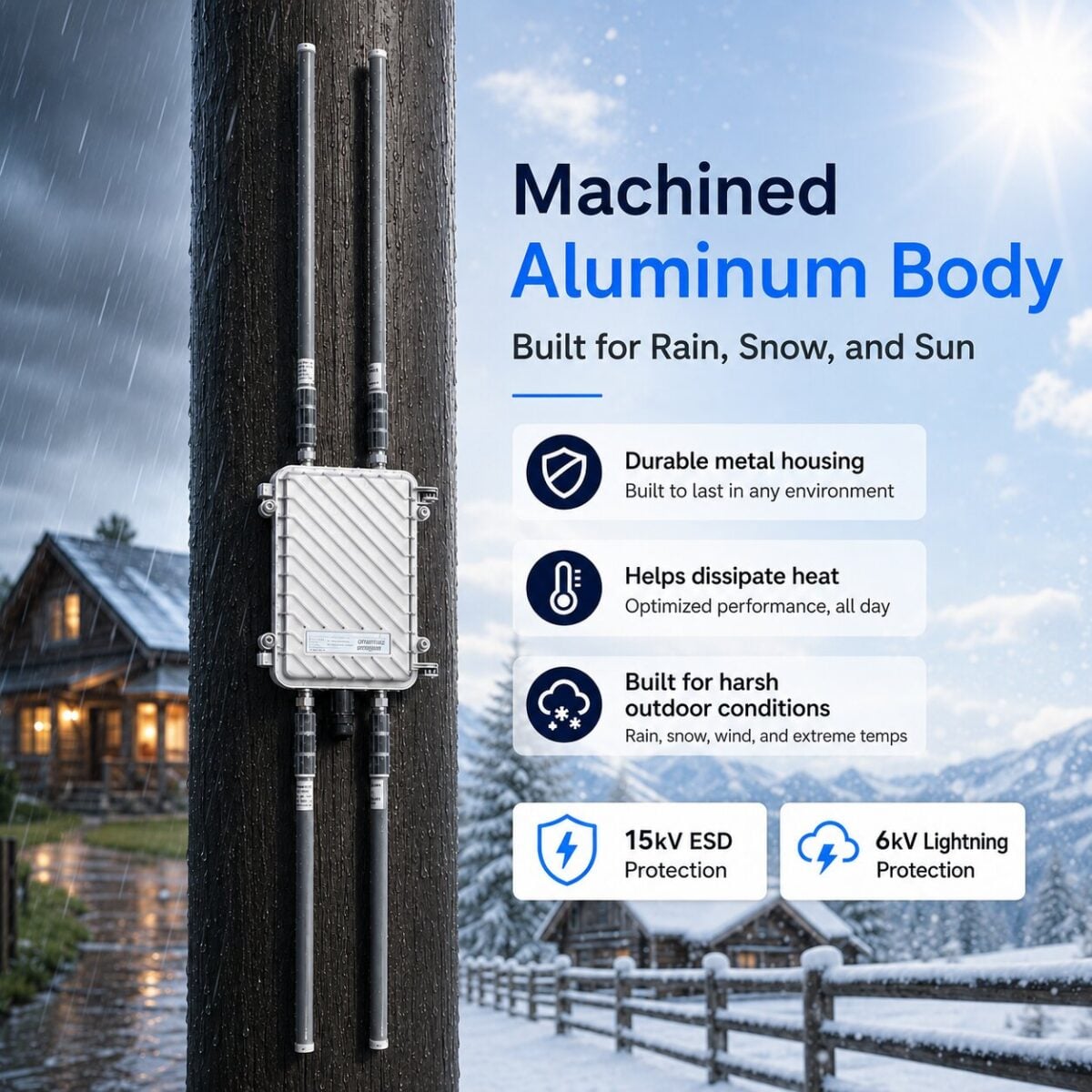
Yes. Beam Outdoor WiFi Extender is built for outdoor use and designed to perform reliably in harsh weather conditions. Its durable aluminum alloy body helps protect the unit from rain, sun, wind, dust, and changing temperatures, making it ideal for year-round outdoor installation.

It also includes 15KV ESD protection and 6KV lightning protection to help protect the device from electrical surges and weather-related interference.

For best performance, install the extender securely outdoors, keep the cable connections properly tightened, and avoid placing the unit where it can be submerged in water.

Once installed, Beam is made to keep your outdoor WiFi coverage strong through everyday weather conditions — from hot sunny days to heavy rain and storms.

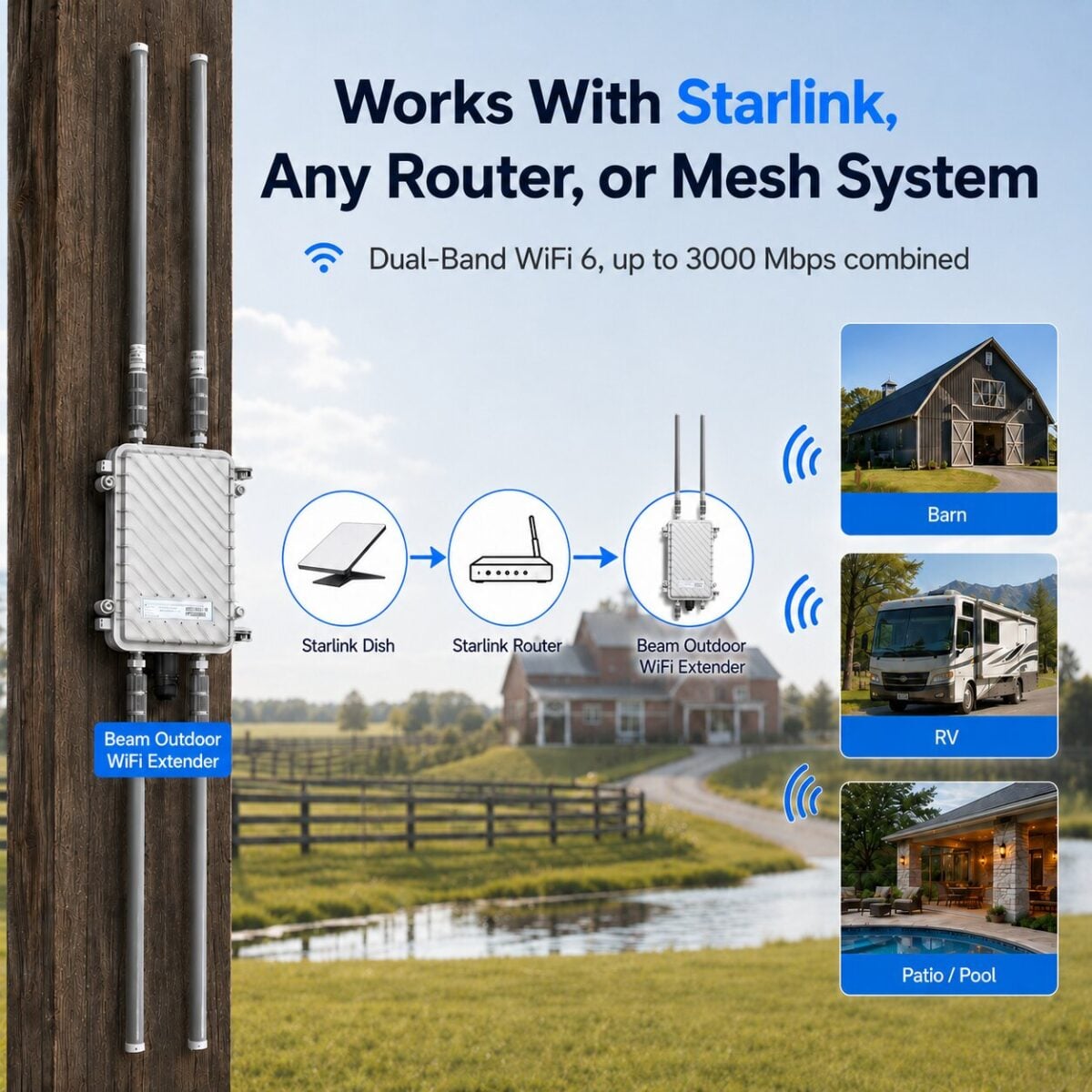
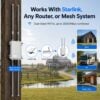
Yes. Beam Outdoor WiFi Extender works with Starlink. You can connect it wirelessly to your Starlink WiFi, or for the strongest and most stable connection, you can connect it with Ethernet.

Wireless setup: Connect Beam to your Starlink WiFi and place the extender outside facing the area where you need coverage.

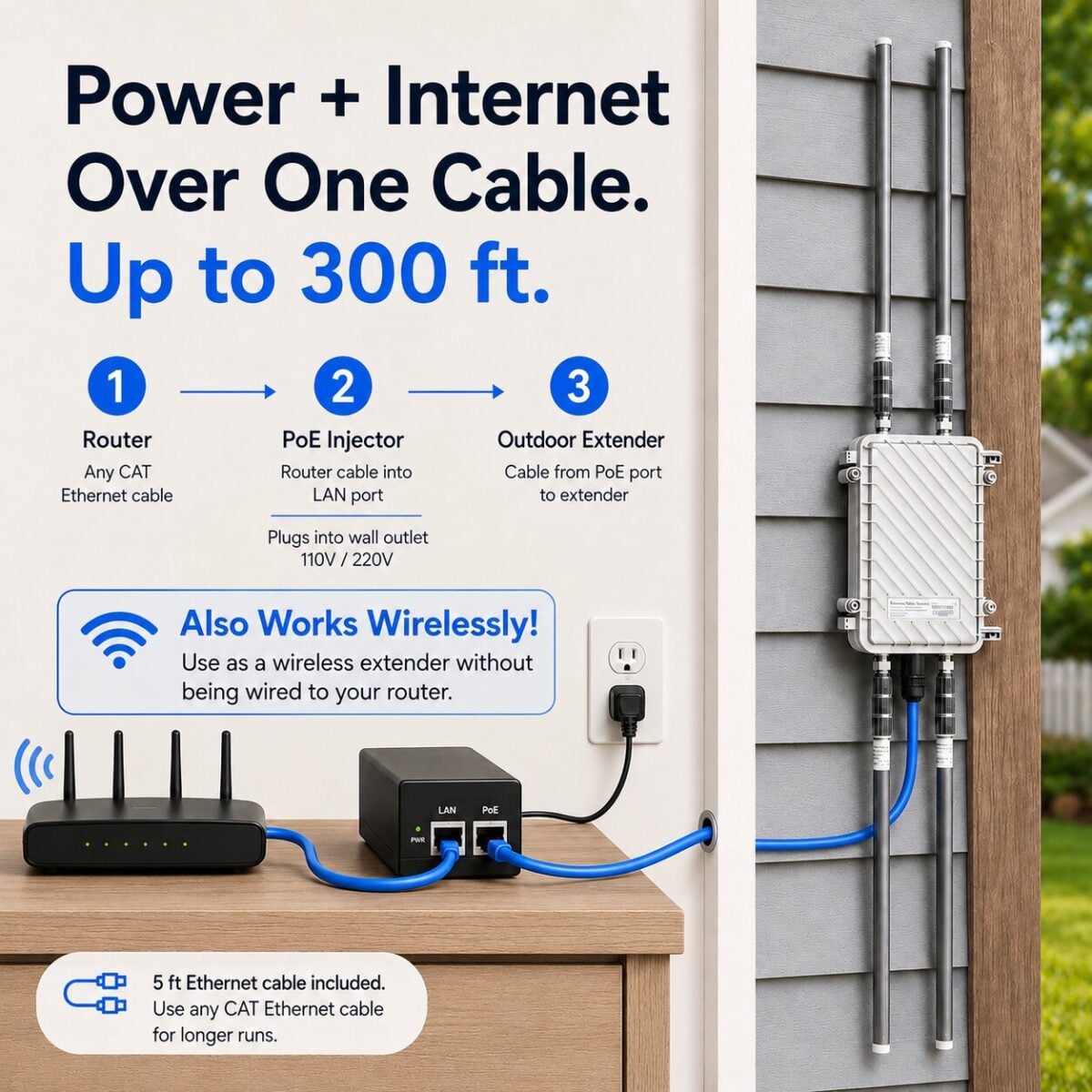
Wired setup: Connect an Ethernet cable from your Starlink router or Starlink Ethernet Adapter into the Beam PoE adapter/LAN port, then connect the PoE port to the Beam outdoor extender. The PoE adapter powers the extender and sends internet through the same Ethernet cable.


Yes. Beam Outdoor WiFi Extender works with all standard WiFi routers and supports both 2.4GHz and 5GHz networks. You don’t need to buy a new router — it works with the router you already have.

You can connect Beam in two ways:

Wireless setup: Connect Beam to your existing WiFi network and place it outside facing the area where you need stronger coverage. This is the easiest setup.

Ethernet/PoE setup: Connect Beam to your router with an Ethernet cable for the strongest and most stable performance. This is recommended for security cameras, guest houses, barns, shops, RVs, and larger outdoor areas.

Here’s Link to Instruction Manual

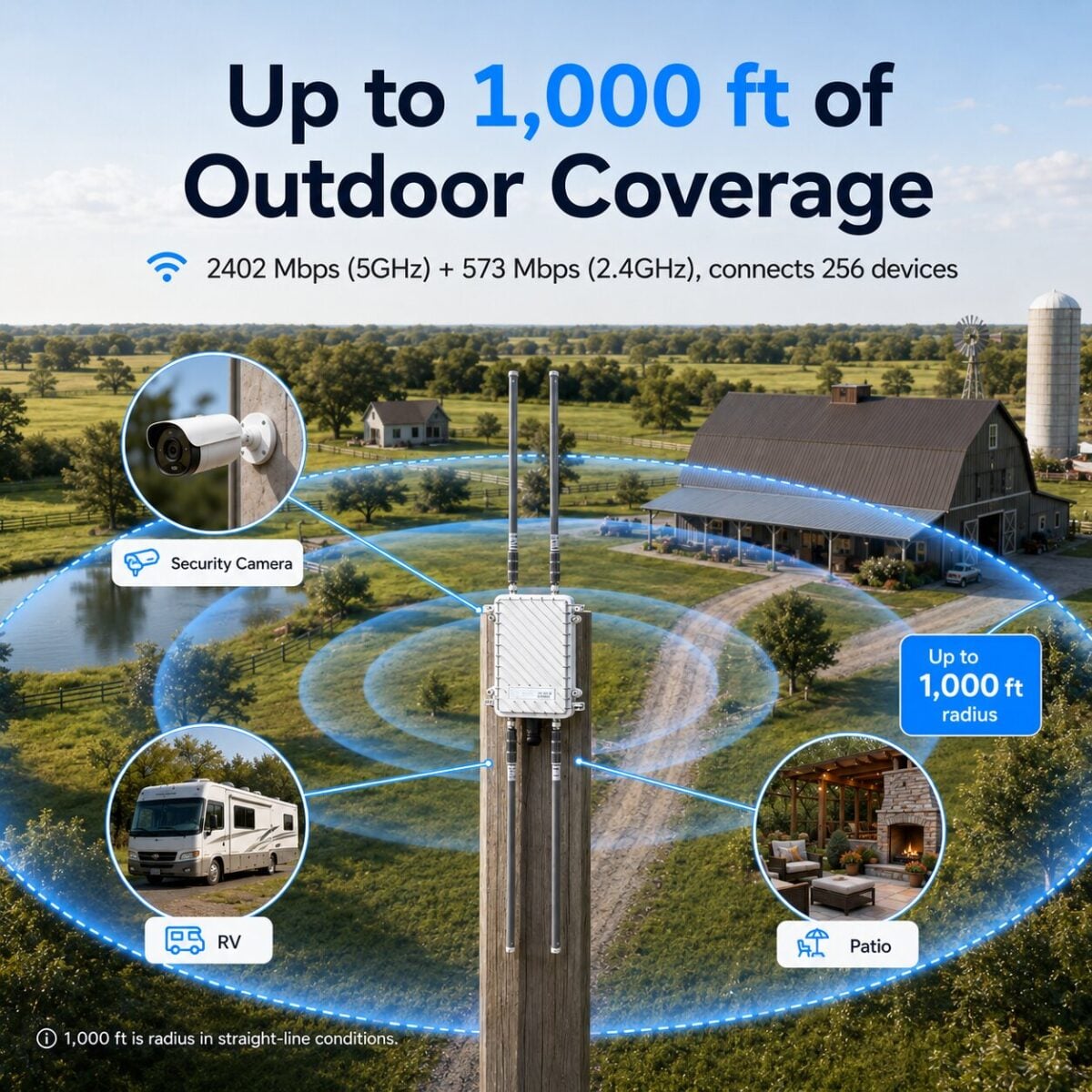
Extends outdoor coverage up to 1000 feet in a straight line in all directions from the extender, covering roughly 2,000,000 sq ft of outdoor space.

Perfect for backyards, gardens, patios, garages, farm lands and outdoor security cameras.

The 1000 ft figure is tested with clear line of sight. Walls, fences, dense trees, hills and metal buildings reduce range. Mount high and aim the antennas at the area you want covered for best results.

One thing worth knowing. WiFi works both ways. Beam’s four high gain antennas carry the full distance, but your phone or camera answers back with a small antenna and far less power. Near the outer edge that return trip is the limit, so a device can show strong bars and still feel slow. It shows up most on cameras uploading video and on video calls. Sensors, gate openers and smart plugs stay fine right to the edge.

Covering a large property, or want full speed the whole way out? Connect up to 6 Beam units in mesh mode. The long hop becomes Beam to Beam, both ends with high gain antennas and full power, and your devices only talk to the nearest unit. Mesh also relays signal past tree lines, barns and slopes.

For most customers, Beam Outdoor WiFi Extender is simple: use Wireless Repeater Mode for the easiest setup, or AP/Ethernet Mode for the strongest performance.

Wireless Repeater Mode: Best if you don’t want to run an Ethernet cable. Beam connects to your existing WiFi router wirelessly and extends the signal outdoors. This is ideal for quick setup and general outdoor coverage.

AP/Ethernet Mode: Best for maximum speed and stability. Connect Beam to your router using an Ethernet cable and the included PoE adapter. This is recommended for security cameras, guest houses, barns, shops, RVs, and larger outdoor areas.

Router Mode: Use this only if you want Beam to create and manage its own WiFi network from a direct internet connection.

Multi-unit setup: If you need to cover a very large property, farm, warehouse, or multiple outdoor areas, you can use more than one Beam unit for wider coverage.

For most homes and outdoor setups, we recommend AP/Ethernet Mode for the best performance, but Wireless Repeater Mode is the easiest option if you want a cable-free setup.

Definitely. Beam Outdoor Wifi Extender is designed for high-speeds of 3000 Mbps, low-latency connections so you can stream HD movies, join video calls, or game online without buffering or dropouts.

No, you don’t have to run an Ethernet cable. Beam Outdoor WiFi Extender can connect wirelessly to your existing WiFi and extend the signal outside.

For the easiest setup, simply connect Beam to your current WiFi network, install it outside facing the area where you need coverage, and you’re good to go.

For the best speed and most stable performance, we recommend using the included PoE/Ethernet setup. This gives Beam a stronger direct connection from your router and is ideal for security cameras, guest houses, barns, shops, RVs, and larger outdoor areas.

In short: wireless setup is quick and convenient, while Ethernet setup gives you the strongest possible performance.


No. The setup is quick and simple, just plug it in, connect to your router, and you’re ready to go in minutes. No tools or technical skills required.

Here’s Link to Instruction Manual

Absolutely. Many customers use it to power outdoor security systems, smart doorbells, and WiFi cameras, ensuring they stay connected without interruptions.

Yes. Our outdoor WiFi repeater is designed to support up to 256 users, allowing your family to connect phones, tablets, laptops, and smart devices simultaneously.


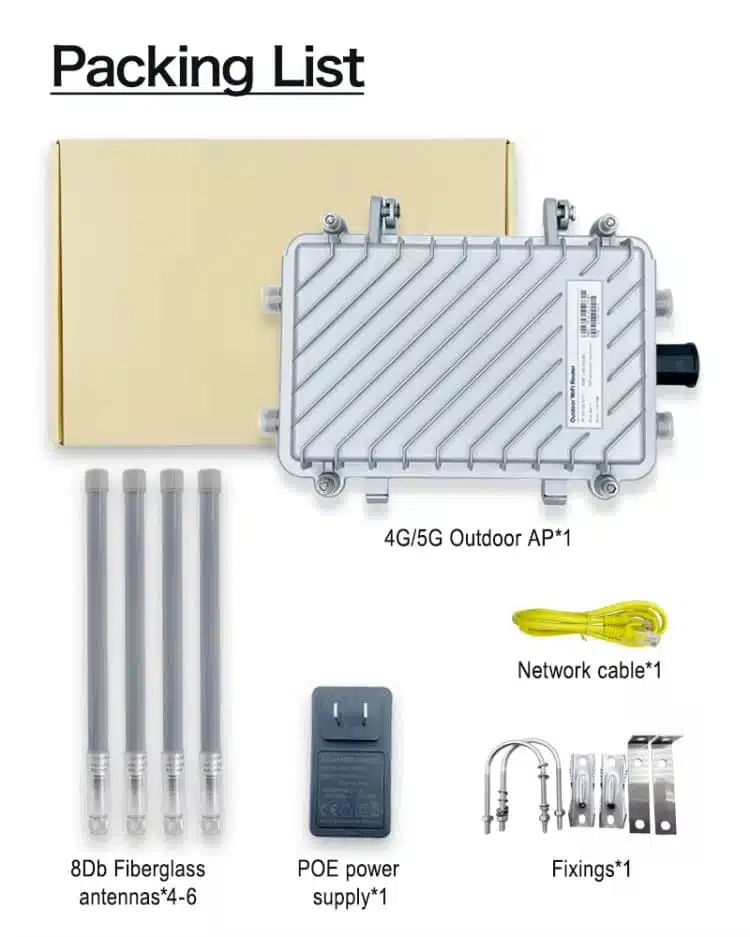
Systems includes everything to make it work. 

  • 1 × WiFi 6 Outdoor Extender

  • 4 × Omni-Directional Antennas

  • 4 × Cable Ties

  • 1 × 5 Feet Ethernet Connector 

  • 1 × Quick Installation Guide

  • PoE (Power Over Ethernet) Wall Power Adapter
  • Set of Required Screws


Absolutely. We offer 2 years warranty, so you’re covered in case of any defects.

We offer a hassle-free 30 Day money back return policy. If the booster doesn’t meet your expectations, you can send it back for a refund.


● GET STARTED IN SIMPLE STEPS

Plugged in to fully covered in about 15 minutes.

No technician, no app, no tools beyond a screwdriver. Everything you need is in the box.

Step 1 · Plug & Power On
Plug & Power On

Outlet → PoE adapter ← Router. One Ethernet run, up to 320 ft, carries power and data outside.

Indoor
Outdoor
Step 1 · Plug & Power On

Plug & Power On

Outlet → PoE adapter ← Router. One Ethernet run, up to 320 ft, carries power and data outside.

120V AC
PoE Adapter 48V · 30W LAN IN POE OUT AC IN
HOME ROUTER LAN
Beam Boost AX3000 Outdoor Extender
Up to 320 ft · Ethernet (Cat5e/Cat6)
Powered on

Step 1: Plug & Power On

Connect your Beam Outdoor WiFi Extender to a power source using the PoE (Power Over Ethernet) Wall Adapter. You can run up to 320 feet of Ethernet cable between the adapter and the outdoor repeater. No complex setup, just plug and power on.

Step 2
Connect to Your Router

Pick a mode in the app. Watch what each one does — AP, Repeater, Mesh, or Router.

Indoor
Outdoor · Exterior wall
Step 2

Connect to Your Router

Pick a mode in the app. Watch what each one does — AP, Repeater, Mesh, or Router.

AP
Repeater
Mesh
Router
HOME ROUTER
Home router
Beam Boost AX3000
Second Beam Boost AX3000 mesh extender
2nd Beam Extender
Internet · WAN
Repeater Mode Wirelessly grabs your indoor WiFi, then re-broadcasts it across the yard.
Repeater Mode · Wirelessly grabs your indoor WiFi, then re-broadcasts it across the yard.

Step 2: Connect to Your Router

Connect to the Beam Outdoor WiFi Extender network and select your preferred mode.

You can either extend your existing WiFi network wirelessly or connect directly to your router via Ethernet to push the signal outdoors and beyond.

Step 3
Enjoy Outdoor WiFi

AX3000 captures your indoor router's weak signal and repeats it — strong coverage across the whole yard.

HOME (INDOOR ROUTER)
Step 3

Enjoy Outdoor WiFi

AX3000 captures your indoor router's weak signal and repeats it — strong coverage across the whole yard.

Repeater Mode · Outdoor
Weak signal in
Beam Boost AX3000
Boosted out
✓
Phone
✓
Laptop
✓
Security cam
✓
Speaker
4 devices connected · 0 drops
2M
sq ft covered
AX3000
WiFi 6 · dual-band
IP67
rain or shine
2M
sq ft covered
AX3000
WiFi 6 · dual-band
IP67
rain or shine

Step 3: Enjoy Seamless Outdoor WiFi

With a coverage area of 2 million square feet and speeds up to 3000 Mbps, you can stream, work, or game anywhere in your backyard, patio, or garden with a strong, stable WiFi connection.

WHERE IT EARNS ITS KEEP

Built for the places WiFi gives up.

Beam 3000 outdoor WiFi extender extending a Starlink connection to a barn

Starlink extension

Dish on the house, WiFi at the shop. The Beam 3000 pushes your Starlink connection to the buildings the router cannot reach.

Beam 3000 outdoor WiFi extender covering a farm and ranch property

Farms and ranches

Gate cameras, barn sensors, and a working signal on the tractor pad, without trenching cable across the lot.

Beam 3000 outdoor WiFi extender providing signal at a backyard pool

Backyard and pool

Music, streaming, and video calls that hold up at the far end of the yard, not just by the back door.

Beam 3000 outdoor WiFi extender for an RV park and campground

RV parks and pads

Give every pad a real connection from one mounted unit. 256 devices means guests do not fight for slots.

Beam 3000 outdoor WiFi extender keeping outdoor security cameras online

Outdoor security cameras

Cameras only protect what they can upload. Stable signal at the fence line keeps every feed live.

Beam 3000 outdoor WiFi extender for a guest house or ADU

Guest houses and ADUs

Full-speed WiFi in the casita or garage apartment with zero new wiring and no second internet bill.

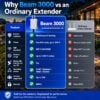
BEAM 3000 VS OTHERS

What the cheap extenders leave out.

A fair look next to typical outdoor extenders sold on marketplaces.

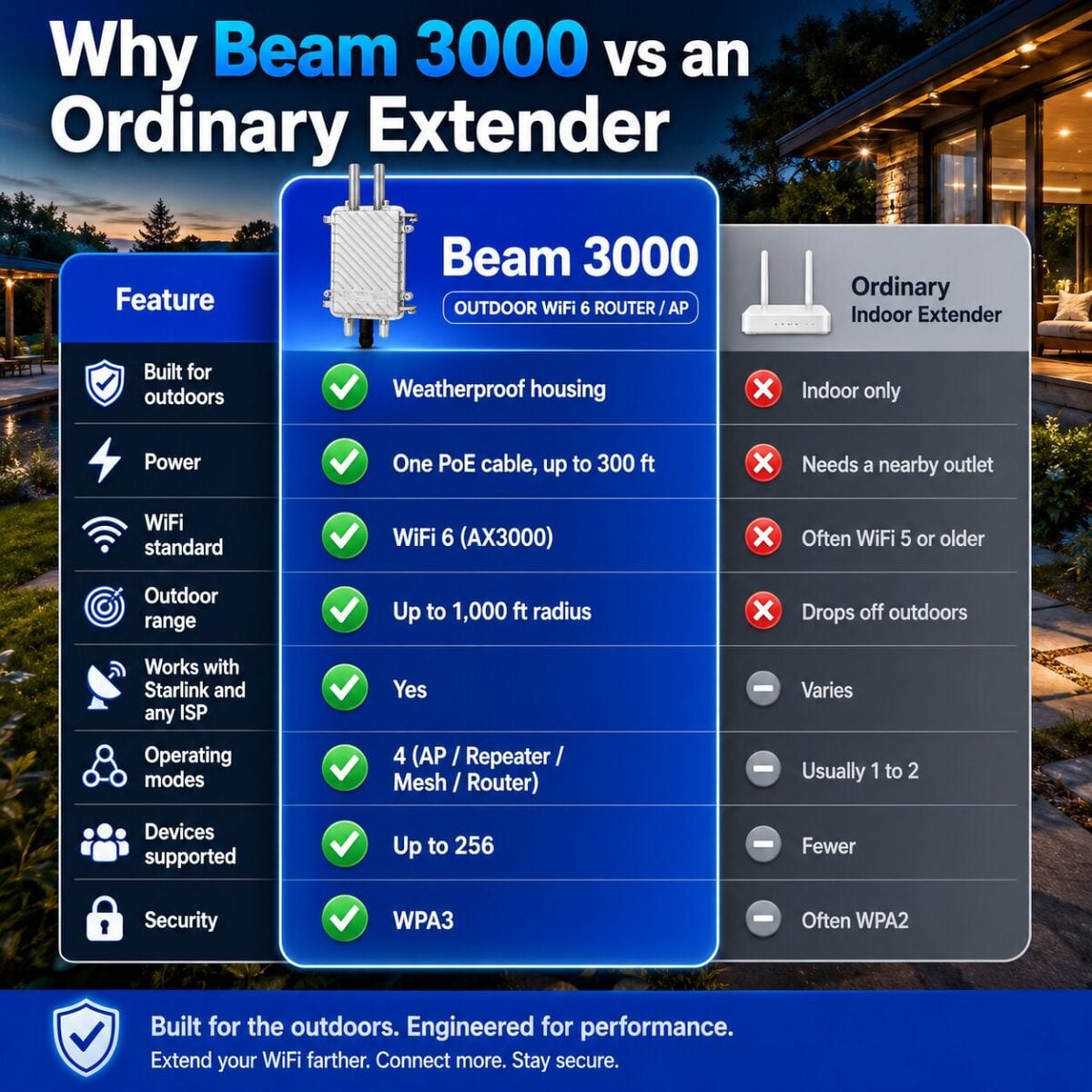
FEATURE Beam 3000 Generic extenders
Range Up to 1,000 ft straight line Often 300 ft or less in practice
Wireless standard WiFi 6, up to 3000 Mbps Usually WiFi 4/5, 300 to 1200 Mbps
Housing Weatherproof aluminum alloy Plastic shell, fades and cracks
Surge protection 15KV ESD + 6KV lightning Rarely specified at all
Mesh expansion Up to 6 units, one network Single unit only
Devices supported Up to 256 Typically 20 to 60
Fees None. No app, no subscription Some require app accounts
Support 2-year warranty, US phone support 90 days, email only

Not sure? Here's what our customers have to say

ZERO-RISK PURCHASE

Try it on your own property for 30 days.

If the Beam 3000 does not fix your dead zones outside, send it back for a full refund. Hassle-free returns, a 2-year warranty, and a US support line that picks up the phone.

Powerful Outdoor WiFi 6. Anywhere, Anytime.

Beam Boost your outdoor connection with the AX3000 Dual Band WiFi 6 Repeater. Enjoy blazing speeds of 2402 Mbps (5GHz) + 573 Mbps (2.4GHz) and coverage up to 1000 feet radius. With 4 high-gain antennas and multiple modes (AP/Repeater/Mesh/Router), you’ll get seamless streaming, gaming, and browsing—rain or shine.

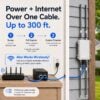
Power and Data in One Simple Connection.

Say goodbye to clutter and power hassles—this Beam Outdoor WiFi Extender delivers internet + power through a single cable. With PoE support, waterproof protection, and gigabit speeds up to 320 ft, it’s built for reliable outdoor performance. Perfect for farms, homes, and businesses—get strong WiFi, anywhere you need it.

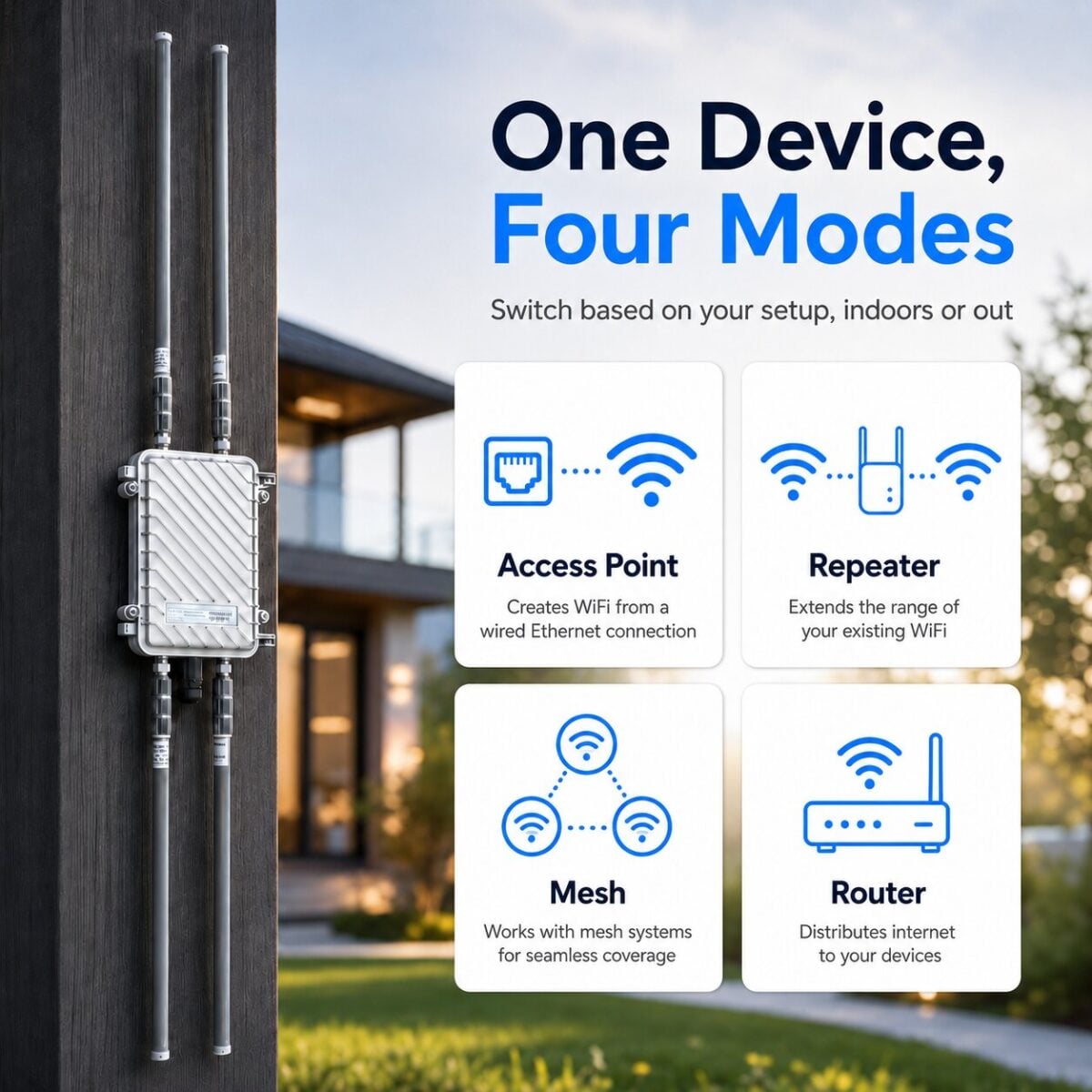
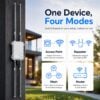
One Device. Multiple Ways to Stay Connected.

The AX3000 WiFi Outdoor Repeater adapts to your needs with 4 flexible working modes.

  • AP Mode: Converts a wired internet connection into a wireless WiFi network.

  • Repeater Mode: Extends and boosts the range of an existing WiFi signal to cover dead zones.

  • Mesh Mode: Connects multiple devices into a single seamless WiFi network with automatic roaming.

  • Router Mode: Distributes internet from a modem to multiple wired and wireless devices.

 Whether it’s your home, farm, or business get strong, reliable WiFi the way you want it.

Extend WiFi Across Miles, Not Just Meters

With Point-to-Point (PTP), enjoy stable wireless links up to 3km / 1.9 miles in open areas. Perfect for connecting remote cameras, barns, or outbuildings. Need more coverage? Use Point-to-Multipoint (PTMP) mode to support up to 6 receivers and deliver strong WiFi across farms, villages, or large outdoor spaces. One device, limitless possibilities.

Go Farther. Connect More.

The Beam Outdoor WiFi Extender delivers a stronger signal with coverage up to 2 Million sq Feet and the power to connect up to 256 devices at once. From homes and offices to farms and outdoor events, enjoy wider coverage, faster speeds, and reliable connections

Built Tough for Any Weather.

Stay connected rain or shine with a WiFi repeater designed for the outdoors. Featuring 15KV ESD protection, 6KV lightning protection, and IP67 waterproof casing, it’s built to withstand storms, heavy rain, and dusty environments—keeping your network strong and reliable no matter the conditions.

Coverage finder

Will It Cover My Property?

Answer five quick questions. We’ll recommend the right Beam 3000 setup, mode, and quantity.

Step 1 of 5
Not sure which option fits? Call +1 (747) 281-2317

Quick Setup Guide

Quick Setup Guide — Beam Boost

WiFi 6 Outdoor Wireless AP

Model WL288 · AX3000 · Dual-Band 2.4G + 5.8G

Standard
WiFi 6
802.11ax
Max Speed
AX3000
3000 Mbps
Power
PoE
802.3AT/AF
Antennas
4×
Dual-band
Contents
01Product Description
02LED Indicators
03Ports & Buttons
04Assembly & Install
05Equipment Connection
06Login & Setup
07Operating Modes
08Mesh Networking
09FAQs
Section 01

Product Description

Hardware overview of the WL288 WiFi6 Outdoor Dual-Band AP

Antennas
  • 2× 2.4G external antenna connectors
  • 2× 5.8G external antenna connectors
  • All four antennas are dual-band capable
  • Weatherproof outdoor-rated connectors
Ports & Controls
  • 1× WAN/LAN (PoE) Ethernet port
  • 1× Reset / Pair button (dual function)
  • Outdoor IP-rated weatherproof enclosure
  • Pole-mount bracket included
Full Specifications
FeatureSpecification
WiFi StandardIEEE 802.11a/b/g/n/ac/ax (WiFi 6)
Frequency Bands2.4 GHz + 5.8 GHz simultaneous dual-band
Max Data RateAX3000 (2402 Mbps 5GHz + 573 Mbps 2.4GHz)
PoE Input802.3AT / 802.3AF standard, or DC 48V/0.5A non-standard
Management IP192.168.62.1
Domain Loginsetup.wifi.net
Default Passwordadmin
Default SSIDWiFi-AX_XXXX
Operating ModesAP / Repeater / WISP / Mesh Master AP / Mesh Master Route / Mesh Slave Route
Max Mesh Slaves6 devices (recommended: 4 for stability)
2 / 10
Section 02

LED Status Indicators

Understand what the LED pattern means for each operating mode

LED Behavior Reference
ModeLED PatternMeaning
Route / Mesh Master AP Mode
Route / Mesh Master AP
Fast Blink
No internet connection
Slow Blink
No internet / Device in pairing state
Solid On
Connected to internet ✓
Mesh Slave Route Mode
Mesh Slave Route
Fast Blink
No internet / Not connected to Mesh Master
Slow Blink
In pairing state
Slow Blink
Connected to Master but no internet
Solid On
Connected to Master & internet ✓
AP / WISP / Repeater Mode
AP / WISP / Repeater
Fast Blink
No internet / Not connected to upstream router
Slow Blink
Connected to upstream router, no WAN
Solid On
Connected to upstream router & internet ✓
Quick Diagnosis

Solid On = everything working. Any blinking = investigate internet connectivity or pairing status.

After factory reset, LED goes out briefly then device reboots — this is normal.

3 / 10
Section 03

Ports & Buttons

Physical interface reference for the WL288

Port / Button Reference
NameDescription & Behavior
WAN/LAN (PoE)Standard PoE 802.3AT / 802.3AF
Non-standard DC 48V / 0.5A adapter
Mesh Master Port acts as WAN port
Other modes Port acts as WAN port
Pair Button
short press
Hold 2 seconds to start Mesh pairing. Used to add Slave devices to an existing Mesh network.
Reset Button
long press
Hold 5+ seconds to restore factory defaults. LED goes out — release when it does, wait for reboot.
Antennas ×4Two ports for 2.4GHz, two for 5.8GHz. Attach all four included antennas before powering on.
Routing Mode Warning

After saving routing mode config, the WAN/LAN port becomes WAN only. You cannot access the management interface via wired connection anymore. Switch to WiFi to continue.

4 / 10
Section 04

Assembly & Installation

Cable routing, weatherproofing, antenna attachment, and pole mounting

Cable Assembly — Weatherproofing (do in order)
1
Pass RJ45 cable through screw cap
2
Pass RJ45 cable through rubber seal
3
Pass RJ45 cable through bracket
4
Place sealing rubber ring on support
5
Connect RJ45 to WAN/LAN port
6
Tighten screw cap to compress seal
Antenna Attachment
1
Identify ports
Locate four connectors — two 2.4G, two 5.8G.
2
Attach to matching ports
Match 2.4G antennas to 2.4G ports and 5.8G to 5.8G. Hand-tighten.
3
Power the device
Connect Ethernet cable: device WAN/LAN port → PoE supply PoE port.
Pole Mounting
1
Attach L-shaped plate
Fix the L-shaped plate onto the device housing.
2
Thread mounting hardware
String pole fixing clip and U-shaped plate into the L-shaped plate to create space for the pole.
3
Secure to pole
Thread rod between U-shaped plate and rod fixing clip. Adjust position and tighten screw.
5 / 10
Section 05

Equipment Connection

Four wiring options for powering and connecting the device

Option A — Non-Standard PoE
Internet/ISP
→
PoE Switch
→
Device WAN/LAN
1
Connect device WAN/LAN to power supply port on PoE switch.
2
Connect PoE switch to your internet source (modem/router).
Option B — Standard PoE Supply
Router/ONT
→
PoE LAN port
→
PoE → Device
1
Connect device WAN/LAN → "PoE" port of PoE power supply.
2
Connect "LAN" of PoE supply → upstream router/ONT LAN port.
3
Plug PoE supply into power outlet. Device boots.
Option C — Wired Computer Config
1
Device WAN/LAN → PoE port of power supply.
2
PoE supply "LAN" → your computer's Ethernet port.
Option D — Wireless Config
1
Connect device to power via adapter.
2
After boot, connect to default SSID:
WiFi-AX_XXXX

If using routing or AP function: Complete mode configuration before connecting PoE supply "LAN" to your upstream router's LAN port.

6 / 10
Section 06

Device Login & Initial Setup

Access the management interface and complete first-time configuration

Access the Management Interface
Method 1 — Direct IP
http://192.168.62.1
Method 2 — Domain Name
http://setup.wifi.net

Default admin password: admin

First Login

When first connecting wirelessly, a login page may auto-appear. If not, manually navigate to 192.168.62.1 in any browser.

Quick Setup Steps
1
Select Country/Region & Time Zone
In "Quick Setting", choose the country/region and time zone where the device will operate.
2
Select System Working Mode
Choose from: AP, Repeater, WISP, Mesh Master AP, Mesh Master Route, or Mesh Slave Route.
3
Change Admin Password
Must change from "admin". This is the settings page password — not the WiFi password.
4
Configure Mode Settings
Set SSID, security mode, WiFi password (or scan for upstream SSID in WISP/Repeater). Click "Complete".

Routing mode warning: After saving, WAN/LAN port becomes WAN only — management interface no longer accessible over wired. Connect via WiFi.

7 / 10
Section 07

Operating Modes

Choose the right mode for your deployment

DHCP Auto-On
AP Mode
Extend a wired network wirelessly.
  1. Select "AP Mode"
  2. Set SSID, Security, Password
  3. Click "Complete"
Scans SSIDs
Repeater Mode
Extend existing wireless range.
  1. Select "Repeater Mode" — auto-scans
  2. Select upstream SSID
  3. Set extended SSID + password, "Apply"
Scans SSIDs
WISP Mode
Connect wirelessly upstream, share as separate network.
  1. Select "WISP Mode" — auto-scans
  2. Select upstream SSID + password
  3. Set own SSID + password, "Apply"
DHCP Auto-On
Mesh Master AP
Acts as AP for a Mesh network.
  1. Select "Mesh Master AP Mode"
  2. Set SSID, Security, Password
  3. Click "Complete"
DHCP Auto-On
Mesh Master Route
Primary router in a Mesh network.
  1. Select "Mesh Master Route Mode"
  2. Connect upstream to WAN/LAN
  3. Select PPPOE / DHCP / STATIC
  4. Set SSID + password, "Complete"
Mesh Slave Route
Secondary device in Mesh network.
  1. Select "Mesh Slave Route Mode"
  2. Set country/region, change password
  3. Click "Start Pair"
Internet Connection Types (Route Mode)
TypeWhen to Use
PPPOEBroadband dial-up — requires ISP username and password
DHCPStandard Ethernet — IP assigned automatically
STATICISP has assigned you a fixed IP address
Switching Modes

To switch from Mesh Slave Route mode to any other mode, factory reset the device first.

8 / 10
Section 08

Mesh Networking

Multi-device setup for extended whole-property coverage

Internet
Modem/ISP
→
Mesh Master
WL288 #1
⇢
Mesh Slave
WL288 #2
⇢
Mesh Slave
WL288 #3

Capacity: One Master supports up to 6 Slave devices. Recommended max: 4 for stability. Pairing time: ~2 minutes per device.

9 / 10
Section 09

Frequently Asked Questions

Troubleshooting tips for the WL288 AP

With the device powered on, press and hold the reset button for more than 5 seconds. Release it after the LED light turns off, and then wait for the device to automatically restart to restore factory default status (default password is admin).

  • Confirm your computer/phone is assigned an IP automatically (DHCP configuration).
  • Ensure you are directly connected to the default or modified wireless SSID.
  • Unplug the connection network cable, run a hardware factory reset, and attempt setup over default WiFi again.
10 / 10

Technical Details

Category Enterprise Wireless APFull Device Specifications
Main Chipset Architecture MediaTek Filogic 820 (MT7981B + MT7976CN + MT7531AE) High-performance enterprise-level communications chip
CPU & Frequency Quad-core ARM® Cortex-A53 MPCore™ @ 1.3GHz
Memory & Flash 256MB RAM / 128MB Flash Storage
Device Interfaces WAN PoE ×1 (10/100/1000Mbps adaptive)
External 2.4G N-type female connector ×2
External 5G N-type female connector ×2
Buttons & Controls Reset button Hold for 6 seconds to trigger factory reset
Wireless Technology Wi-Fi 6 Dual-Band 2×2 Concurrent
  • 2.4G WiFi: 2×2 802.11b/g/n/ax (max 573Mbps)
  • 5.8G WiFi: 2×2 802.11a/n/ac/ax (max 2402Mbps)
  • Advanced RF: 1024QAM, OFDMA (Uplink/Downlink), MU-MIMO, BSS Color, STBC, LDPC, Beamforming TX/RX
  • Power Management: Single antenna standby, dynamic MIMO saving, enhanced auto power-saving, packet-by-packet control
WiFi Frequency Range 2.4G: 2.4–2.4835GHz
5G: UNII-1 (5.15–5.35GHz), UNII-2 (5.47–5.725GHz), UNII-3 (5.725–5.825GHz)
WiFi Channels Supported 2.4G: Channels 1–13
5G: Channels 36, 40, 44, 48, 52, 60, 64, 149, 153, 157, 161, 165
Modulation Schemes 802.11b: DSSS (DQPSK, DBPSK, CCK) 802.11g/n/ac: OFDM (BPSK, QPSK, 16-QAM, 64-QAM, 256-QAM) 802.11ax: OFDMA (BPSK, 256-QAM, 1024-QAM)
Transmission Rates 11b: up to 11Mbps | 11g: up to 54Mbps | 11n: up to 300Mbps
11ac: up to 864.7Mbps | 11ax: up to 573Mbps (2.4G) / 2402Mbps (5G)
Power Supply Syntax 48V 802.3af/at Power over Ethernet (PoE)
Antenna Configurations 4x High-Gain Omni Directional Antennas
Environmental Tolerances Operating: -40℃ to 50℃ | Storage: -50℃ to 70℃ Humidity: 10%–90% Operating / 5%–90% Storage (Non-condensing)
Dimensions & Weight 235 × 155 × 80 mm Weight: 1150 g
Transmit Power Settings 11b: 23 dBm @11Mbps | 11g: 20 dBm @54Mbps
11n/ac/ax (20/40/80MHz bands): 17 dBm max outputs
Receiver Sensitivity (2.4G)
  • 11b: ≤ -99 dBm @1Mbps, ≤ -90 dBm @11Mbps
  • 11g: ≤ -96 dBm @6Mbps, ≤ -78 dBm @54Mbps
  • 11n: ≤ -96 dBm @MCS0 (20MHz), ≤ -74 dBm @MCS7 (40MHz)
  • 11ax: ≤ -96 dBm @MCS0 (20MHz), ≤ -63 dBm @MCS11 (40MHz)
Receiver Sensitivity (5G)
  • 11a: ≤ -94 dBm @6Mbps, ≤ -78 dBm @54Mbps
  • 11n: ≤ -94 dBm @MCS0 (20MHz), ≤ -72 dBm @MCS7 (40MHz)
  • 11ac: ≤ -94 dBm @MCS0 (20MHz), ≤ -62 dBm @MCS9 (80MHz)
  • 11ax: ≤ -94 dBm @MCS0 (20MHz), ≤ -58 dBm @MCS11 (80MHz)
Working Profile & Capacity Integrated Fat-Thin Hybrid AP Architecture Up to 256 associated devices (128 concurrent active users recommended).
Management Interfaces Localized English Web Panel UI / Remote Cloud Platform / Smartphone Mini Program
Device Telemetry Status Real-time CPU tracking, remaining memory availability, active user index count, hardware diagnostics info, running logs
LAN & DHCP Settings Auto/Static IP configuration, customizable WAN/LAN VLAN mapping, MAC address overridesDHCP Profiles: Disabled / Normal / Advanced allocation rules
Topology Profile Changes Router Mode or Access Point (AP) structural switching, isolated DHCP server toggles
Wireless Configuration Options
  • 2.4G Layer: Up to 5 discrete SSIDs, VLAN ID tags, Advanced Encryption & password policies, Country/Region matching, Channel bandwidth selection, Transmit Power tweaks, AP Isolation, Multicast conversion, Weak signal RSSI drop thresholds, WDS repeating, visual connected client lists
  • 5G Layer: All 2.4G settings + VHT ultra-high bandwidth, structured MESH networking options (Master/Slave handshakes), specialized 5G WDS modes
Network Diagnostic Utilities ARP Table Matrix (IP, MAC, hardware interface assignment, unique/static statuses, structural XML data import/export)
Built-in ping utilities and hop-by-hop TraceRoute diagnostic panels
AC Platform Client Integration AC Server endpoint target binding, unified logical group naming conventions, automated user caps, global wireless TX control, AP isolation policies, structural DHCP defenses, connection state monitoring
System Level Operations Configuration file Backup/Import, master factory default triggers, firmware local flashing, immediate/automated scheduled cron reboots, systemic layout identity tracking (Project / Device / Hostname / Internal Domain namespaces)